
Use Gemini Like a Native Mac App with Quiper
Gemini is one of the most capable assistants you can run today. Since April 15, 2026, Google has shipped an official Gemini app for macOS — a native client that owners of Apple Silicon Macs running macOS Sequoia or newer can download for free from gemini.google/mac. For anyone whose Mac qualifies, that first-party app is the natural first choice, and this post will be honest about it.
Quiper is the alternative for two groups: people the official app leaves out — Intel Macs and macOS 14 — and people who want more than Gemini alone, with Gemini and several other engines in one overlay. Below I compare the two fairly, then walk through what the Quiper setup looks like and the concrete features that make it feel like a desktop app instead of a website in a window.
What "native" means for a web service
Before the setup steps, it is worth being precise about what Quiper does and does not change. Quiper renders Gemini through the system WebKit framework, so the page you see is still gemini.google.com. The native value is everything around that page:
- a global hotkey that drops the overlay over whatever you are working in,
- up to ten persistent sessions per engine kept alive in memory,
- system notifications when a background generation finishes,
- keyboard-first navigation and engine-specific actions,
- sandboxed local data that can be locked behind Touch ID.
That distinction matters because it keeps expectations honest — and because none of it is possible from a browser tab.
The official Gemini app for Mac
Before the Quiper setup, it's worth being fair to the first-party option. Google's Gemini app for Mac is a genuinely native client, and because Google builds it, it's the most direct route to Gemini on a Mac. Google maintains it against its own service, so it stays in step with how Gemini evolves, and it reaches deeper into the operating system than a web-based wrapper can: it supports voice input, can share your screen with Gemini, works across your other apps with Speak to Window, and in supported regions offers opt-in local file access and Mac automation through Gemini Spark.
It also has real requirements and boundaries. It needs Apple Silicon and macOS Sequoia (15.0) or newer, with 8 GB of RAM and about 200 MB of free disk. It's free, but it is only Gemini — no ChatGPT, Claude, or Grok — and its local file and automation features connect only to directories you explicitly choose.
If your Mac meets those requirements and Gemini is the only assistant you use, this is a solid recommendation: first-party support is hard to beat. Quiper is worth considering for the situations laid out in Comparing the two options.
Setting up Gemini in Quiper
Quiper requires macOS 14 or newer, with no special hardware requirements. Download the latest Quiper.dmg from the releases page, drag the app into /Applications, and launch it. It runs as a menu-bar application: the icon stays in the menu bar, and by default a Dock icon appears only while the overlay is open (you can set Dock visibility to Always or Never under Settings → Appearance).
- Press
⌥ Space(the default global hotkey) to open the overlay. If you also use Google's Gemini app for Mac, rebind one of the two — both default to the same shortcut. - Gemini is included as a built-in template, so it appears in your engine selector with its own tab. Select it.
- Sign in with your Google account. Quiper keeps the
accounts.google.comlogin flow inside the overlay via a default routing rule, so authentication doesn't bounce you out to Safari. - Start typing — Quiper auto-focuses the Gemini prompt field the moment you open the tab.
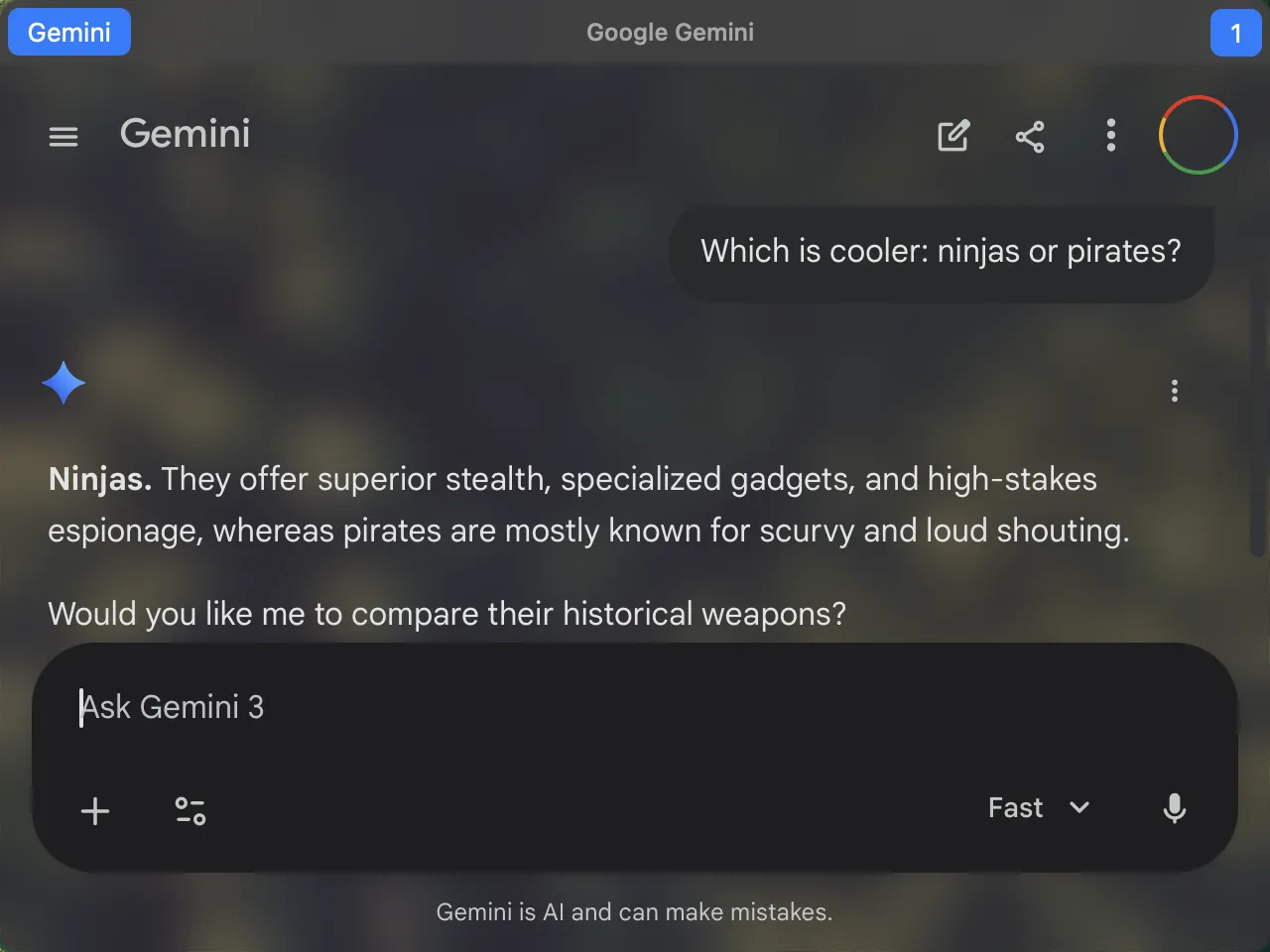
Gemini running inside Quiper's overlay.
If the release build is new to you, you can verify it came from this repository's CI before running it:
gh attestation verify Quiper.dmg --repo sassanh/quiperThe everyday workflow
Once Gemini is signed in, the rhythm is: press ⌥ Space, type, press ⌥ Space again. The overlay appears above your active app, and when you dismiss it, keyboard focus returns to whatever you were using. A small question mid-typing in Xcode, a terminal, or a document never forces you to find a window or rearrange your workspace.
This is the part that changes how often you actually reach for the assistant. When Gemini lives in a browser, a quick question carries the overhead of locating the right window and the right tab. Inside an overlay bound to a global shortcut, that overhead disappears.
Sessions that stay put
A single Gemini conversation is rarely enough for a day of work. Quiper gives each engine ten session slots that stay alive in memory, so you can keep a coding thread, a research thread, and a writing thread open at the same time without reloading or hunting through history.
⌘ 1through⌘ 0jump straight to a session slot.⌘ ⇧ →and⌘ ⇧ ←step between sessions.⌘ `cycles your most-recently-used tabs.⌘ Wcloses a session.
Because the slots stay warm, switching between them is instant — no spinner, no page reload, no context lost. When you quit and relaunch Quiper, open tabs and their pages are restored, so closing the overlay never means abandoning a thread.
Native notifications for background generations
Gemini often takes a while on long prompts. Quiper bridges web notifications to the macOS notification system, so when a generation finishes while you are working in another app, you get a real system banner instead of a silently resolved browser tab. Grant notification permission on first launch and Quiper's WebKit bridge handles the rest — background work completes, you see the notification, and you press ⌥ Space to return to the finished answer.
A keyboard vocabulary that stays the same
Quiper comes with five default custom actions, and each one is backed by an engine-specific JavaScript script because Gemini's DOM doesn't match other services' pages. The shortcuts stay familiar no matter which engine is active:
| Action | Shortcut |
|---|---|
| New session | ⌘ N |
| New temporary session | ⌘ ⇧ N |
| Share the active thread | ⌘ ⇧ S |
| Open the conversation history list | ⌘ ⇧ H |
| Open engine settings | ⌘ , |
For Gemini specifically, these scripts handle the quirks of its interface — opening the sidebar, toggling a temporary chat, and finding the share button. They run through the standard web controls, so you also get ⌘ F for find-in-page, ⌘ R to reload, ⌘ ⌥ I for the Web Inspector, and ⌘ + / ⌘ - for zoom, all without touching the mouse.
Making it look like it belongs
Two touches close the aesthetic gap between "website in a window" and "Mac app":
- Vibrancy. Quiper's window supports native macOS material effects, blur radius, and outlines, so the frame blends with your wallpaper and the apps behind it instead of sitting on top of them like a browser.
- Per-engine custom CSS. The Gemini template includes a default stylesheet that makes the page background transparent so the native vibrancy shows through. You can edit it per engine — hide Gemini's sidebars, tune colors, remove clutter — and Quiper applies it on reload.
If you want Gemini to look like a first-party Apple app, enabling the transparent background CSS and a matching vibrancy material gets you most of the way there in a minute.
Local privacy you can control
Quiper runs every engine in its own sandboxed WebKit data store, so Gemini's cookies, cache, and local storage are isolated from the rest of your browsing. It is also telemetry-free and connects directly to Google — Quiper never proxies your prompts through its own servers.
For conversations you'd rather keep extra private, the Gemini engine can be locked behind Touch ID. Its entire local web profile (cookies, cache, local storage, session state) is then stored in an AES-256 encrypted APFS disk image unlocked only by your biometrics, with the passphrase held in the Keychain. It's an opt-in local safeguard.
One honest boundary: this protects data at rest on your Mac. Prompts you send to Google are still stored and processed by Google according to its policies — no local wrapper can change that.
Comparing the two options
A feature-level look before the workflow guidance:
| Gemini app for Mac | Quiper | |
|---|---|---|
| Maker | Google (first-party) | Open source (MIT), community |
| Cost | Free | Free |
| macOS | Sequoia (15.0) or newer | Sonoma (14.0) or newer |
| Hardware | Apple Silicon only | Any Mac that runs the macOS version |
| Engines | Gemini only | Gemini plus many other cloud and local engines |
| Concurrent conversations | One active chat; past chats via your Google account | Up to 10 warm, persistent sessions per engine |
| Service isolation | Not applicable (single service) | Sandboxed WebKit data store per engine |
| Local data protection | — | Optional Touch ID encryption (AES-256 APFS) |
| OS-level AI features | Voice, screen sharing, Speak to Window, opt-in file access | Not available (renders the web app) |
| Customization | Limited | Per-engine CSS and JavaScript actions |
| New Gemini features | Maintained by Google, stays in sync with the service | Follows the web app, with occasional lag while selectors are updated |
| Source | Google-managed | Open source (MIT), verifiable builds |
Where Quiper has an edge
- One overlay for every service. Gemini sits next to ChatGPT, Claude, Grok, and many other cloud and local engines. Switching services is a keyboard shortcut away instead of a trip to a different app or tab.
- Ten warm sessions per engine. Each engine keeps up to ten sessions alive in memory, so a coding thread, a research thread, and a writing thread can all be mid-conversation at once, with
⌘ 1–⌘ 0jumping between them instantly. In the official app you work in one active chat and return to older threads through your account history. - Isolation between engines. Every engine runs in its own sandboxed WebKit data store — cookies, cache, and local storage are separated, so nothing bleeds between Gemini, ChatGPT, and any local engine you add.
- Encrypted local storage. An engine can be locked behind Touch ID, storing its cookies, cache, and local data in an AES-256 encrypted volume that only your biometrics unlock — useful on shared machines or against device theft.
- Local and self-hosted models. Point Quiper at a local interface such as Open WebUI,
llama.cpp, or oMLX and run local or offline models in the same overlay as cloud services. - Keyboard-first workflow. A prompt-history HUD, a tab-history switcher, per-engine actions, and find-in-page all stay one shortcut away.
- Auditable. Open source, telemetry-free, direct connections to providers, and cryptographically verified release builds.
Where the official app has an edge
- First-party. It's Google's own client, maintained by Google against its own service. You're not dependent on a third party keeping up with Gemini's changes.
- Deeper macOS integration. Voice input, sharing your screen with Gemini, Speak to Window to act across your other apps, and opt-in access to local files — capabilities a WebKit-based shell can't provide.
- A single point of trust. You're relying on Google for the whole experience rather than on a third-party client.
Who should use which
Prefer the official app if you're on Apple Silicon with macOS 15 or newer, Gemini is the only assistant you need, and you want first-party features and OS-level integration — voice, screen, and file access.
Prefer Quiper if you work across several AI services and want them in one overlay, you juggle multiple live threads per service and want them all warm, you need isolation between services or local encryption behind Touch ID, you use local or self-hosted models, or you'd rather run an open-source, auditable client. On an Intel Mac or macOS 14 — where the official app won't run — Quiper is simply the option that works at all.
If both run on your machine, try them side by side and keep whatever fits your routine.
For the full walkthrough, follow the step-by-step Gemini setup guide.
Download the latest Quiper release, or get Google's Gemini app for Mac.